Monitor Calibration Guide
Browser tests can help you set a monitor to a sensible baseline and spot obvious problems. They do not replace a colorimeter, but they make brightness, contrast, gamma, sharpness, and banding easier to judge before hardware calibration.
Quick answer
- Start from a standard or sRGB-like preset, disable dynamic enhancements, and set native resolution.
- Adjust brightness for the room first, then contrast, gamma, sharpness, and color temperature.
- Use gradients and grayscale steps to catch clipping, crushed shadows, banding, and strong tint.
- Use a colorimeter for photography, print, brand color, paid video work, or any measured accuracy requirement.
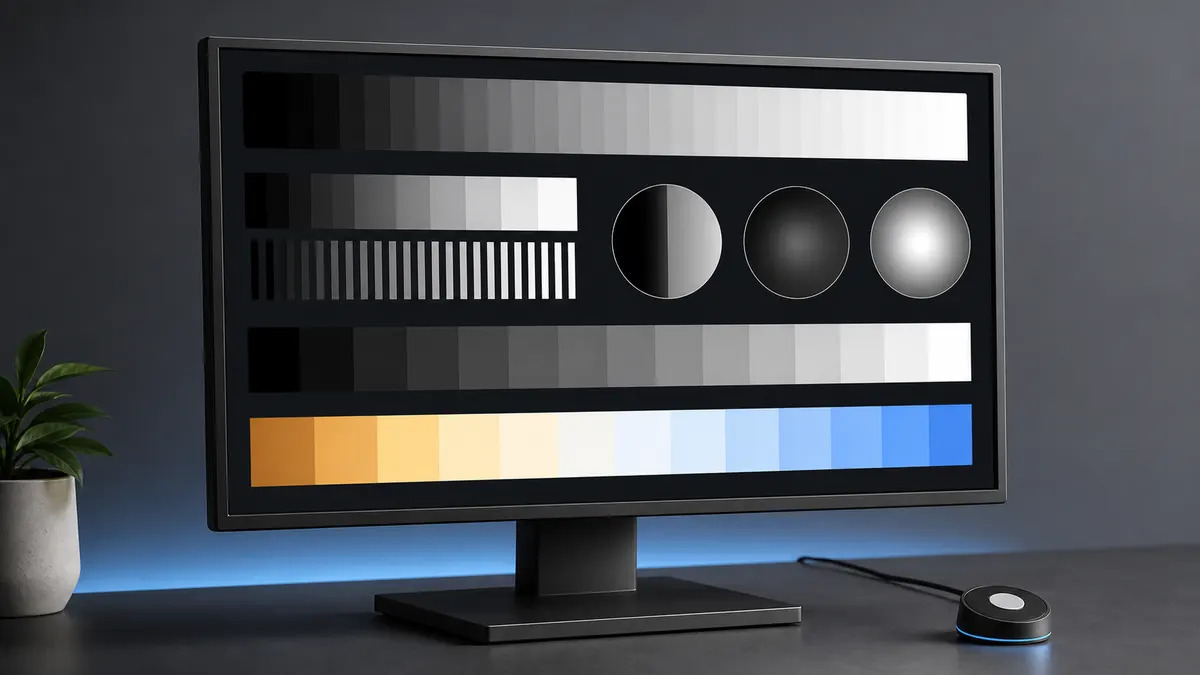
Start from a controlled baseline
Choose a neutral preset before making adjustments. Standard, sRGB, custom, or creator modes are usually better starting points than vivid, dynamic, movie, or game presets. The goal is not to make the screen dramatic; it is to make it predictable.
- Use native resolution.
- Disable dynamic contrast and enhancement modes.
- Let the monitor warm up before final checks.
A stable baseline prevents you from chasing problems caused by the preset.
Set brightness for your room first
Brightness affects comfort, perceived contrast, and black screen judgment. A monitor that looks good in a bright store can feel harsh in a dim room. Set brightness where whites are comfortable and dark content is still visible.
- Use normal room lighting.
- Avoid testing only at maximum brightness.
- Recheck at night if your lighting changes.
Brightness is a viewing-environment setting, not a universal number.
Adjust contrast without clipping detail
Contrast should preserve both shadow detail and highlight detail. If the brightest steps merge together, highlights are clipped. If dark steps disappear into black, shadows are crushed. Use contrast patterns and real photos before deciding.
- Look for distinct near-white steps.
- Look for distinct near-black steps.
- Retest after changing brightness.
High contrast is not useful if it destroys detail.
Use gamma and grayscale patterns carefully
Gamma controls the midtone relationship between black and white. View gamma patterns at 100 percent zoom because browser scaling can interfere with fine patterns. Then inspect grayscale ramps for color tint or uneven transitions.
- Keep browser zoom at 100 percent.
- Use gray ramps to spot tint or banding.
- Compare the result with normal photos and video.
Gamma checks are useful for visual tuning, but they are not measured calibration.
Tune sharpness for text, not fake detail
Sharpness controls edge enhancement on many monitors and TVs. Too little can blur text; too much creates halos, color fringing, and artificial outlines. Use text clarity and grid patterns at native resolution.
- Use the monitor native resolution.
- Check black text on white and white text on black.
- Avoid halos around fine lines.
The best sharpness setting is the one that makes text clean without drawing outlines around it.
Know when you need a colorimeter
If you edit photos, print work, match brand colors, grade paid video, or deliver color-critical files, visual browser checks are not enough. A colorimeter measures the display and creates a profile that software can use.
- Use hardware for measured targets.
- Recalibrate when room lighting or display behavior changes.
- Keep browser tests for quick sanity checks between calibrations.
Browser tests improve practical setup; hardware calibration provides measured color accuracy.
Decision table
What each calibration setting changes
Use this as a practical order of operations when you do not have a colorimeter yet.
| Setting | What it controls | Browser check |
|---|---|---|
| Brightness | Overall luminance and eye comfort | Brightness steps and real room comfort. |
| Contrast | White and black clipping behavior | Contrast steps with visible shadow and highlight detail. |
| Gamma | Midtone brightness and image depth | Gamma test viewed at 100 percent zoom. |
| Color temperature | Warm or cool white balance | White, gray, and real photo checks under steady lighting. |
| Sharpness | Edge enhancement and text halos | Text clarity and fine grid patterns. |
Recommended tools
Run the tests mentioned in this guide
Brightness Test
The brightness test helps you set a comfortable level while keeping near-black and near-white detail visible.
Contrast Test
Use stepped tone patterns to see whether your display keeps dark and bright details separate.
Gamma Test
Gamma affects midtone brightness. This test gives you reference patterns for judging whether gray steps look balanced.
Color Banding Test
Smooth gradients reveal banding, posterization, and compression-like steps that flat color screens can hide.
FAQ
Common questions
Can I calibrate a monitor online?
You can tune practical settings online, but measured calibration requires hardware.
What should I disable before calibration?
Disable dynamic contrast, vivid modes, motion processing, and strong sharpening when possible.
Do I need calibration for gaming?
You may not need measured color, but brightness, contrast, gamma, and motion checks still improve the experience.
What is the first monitor setting I should change?
Start with brightness because it depends on your room. Then check contrast, gamma, color temperature, and sharpness.
Should I use sRGB mode?
Use sRGB mode when you want a conservative web and desktop baseline, but check whether the mode locks useful settings such as brightness.
Why do gradients look banded after calibration?
Banding can come from the panel, GPU output, bit depth, browser rendering, aggressive settings, or the content itself. Use the color banding test and compare multiple sources.
Run the matching fullscreen tests.
Use the guide above to decide what to look for, then confirm it with a clean test pattern.