Monitor Test Online
Check a monitor, laptop, phone, tablet, or TV screen with fullscreen patterns for dead pixels, backlight bleed, uniformity, color, contrast, gamma, text clarity, and motion.
Live screen test
Start with the real patterns.
Find dark dead pixels and dust spots.
Recommended flow
Test the screen in the right order.
Click Start Monitor Test, go fullscreen, then walk the color sweep before you open a dedicated page. That is the how-to for this tool: one sitting, not twenty separate tabs.
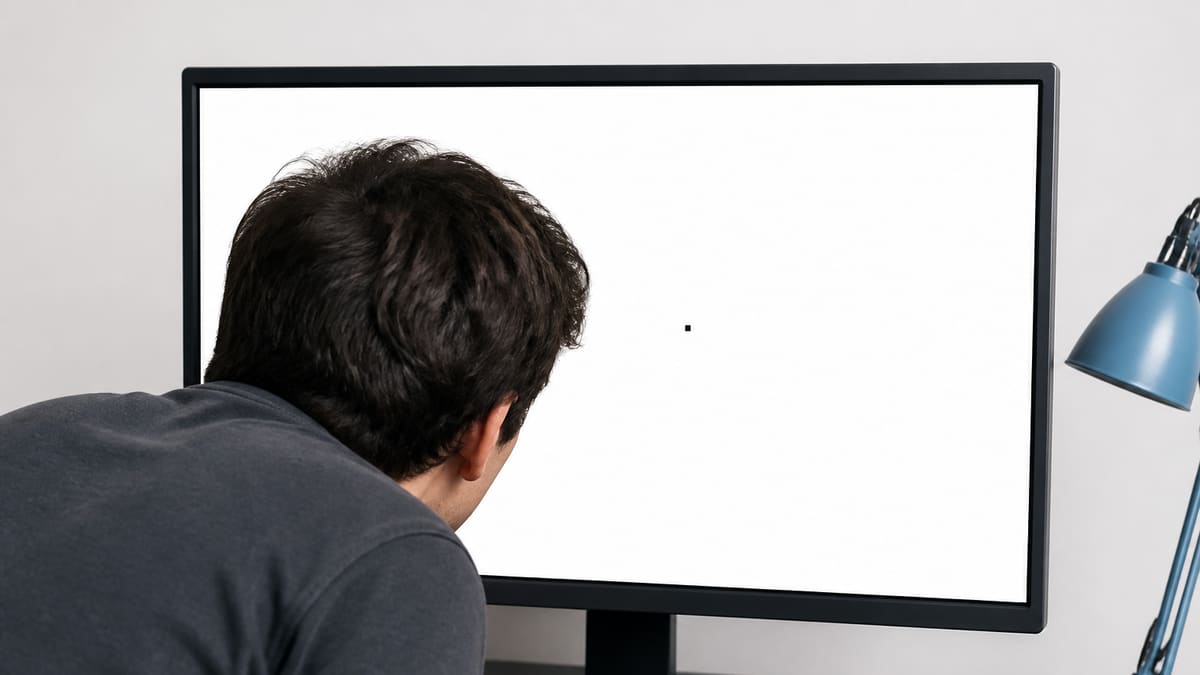 01
01Pixel sweep
Start with white, black, red, green, and blue screens for dead or stuck pixels.
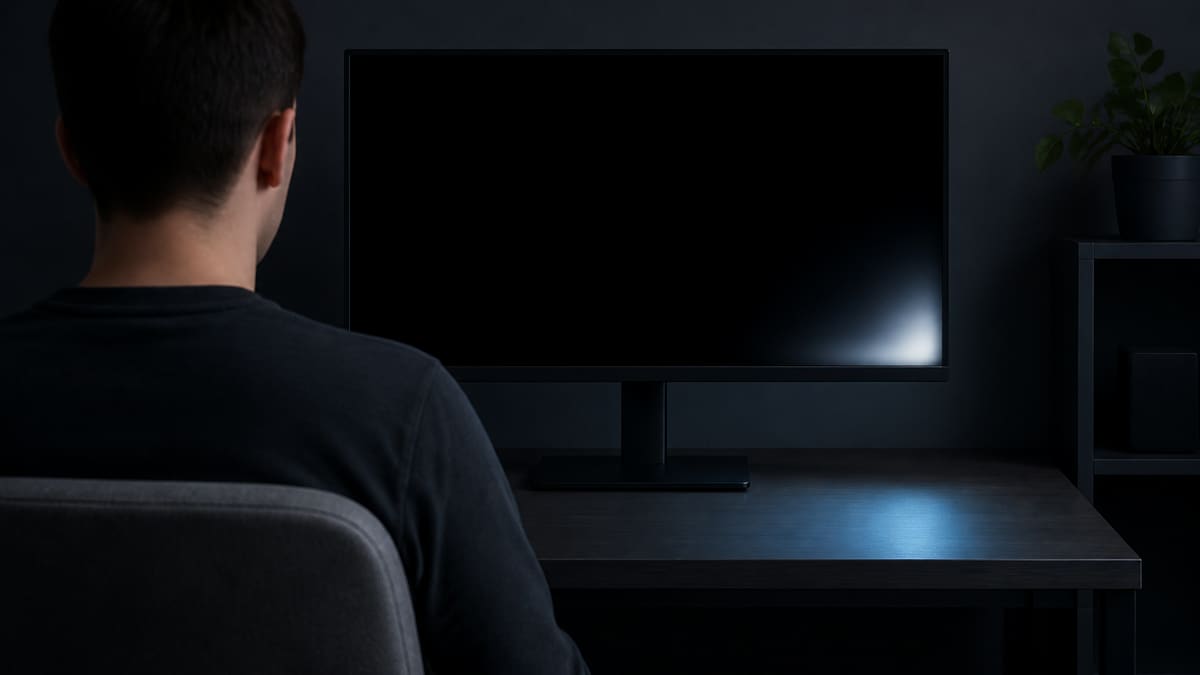 02
02Panel quality
Use black and gray fields for backlight bleed, dirty screen effect, and uniformity.
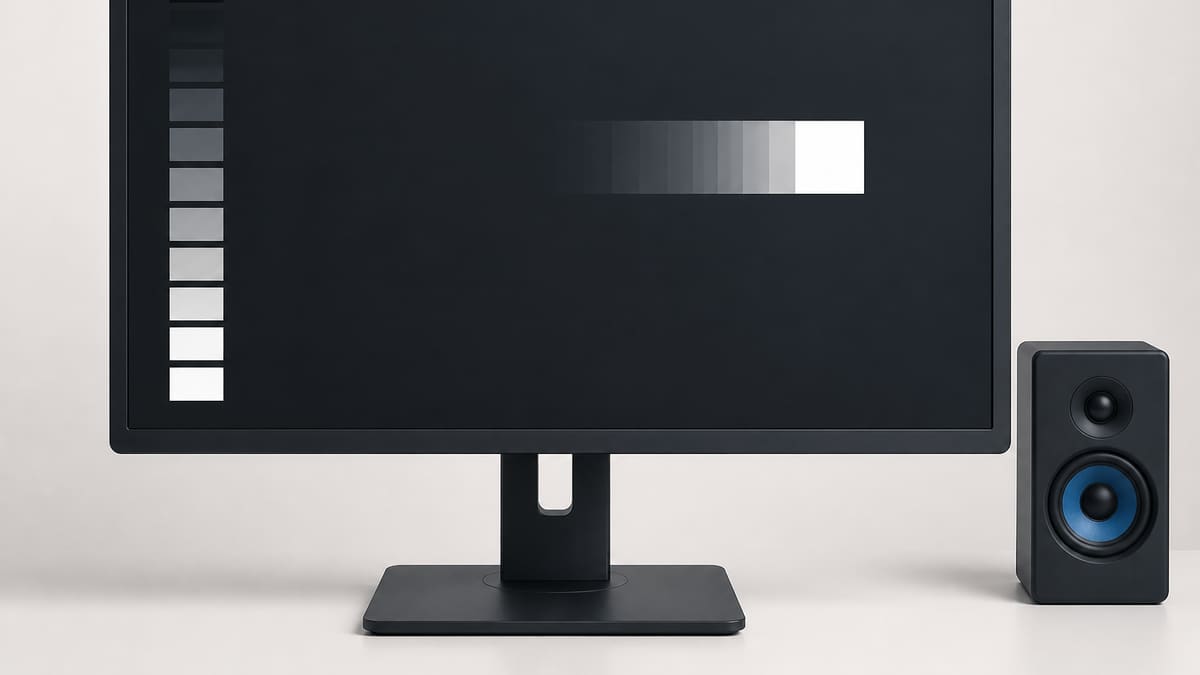 03
03Tone and motion
Finish with brightness, contrast, gamma, text clarity, response time, and refresh checks.
What it is
What a monitor test does in the browser.
A monitor test — the same job people search as a screen test, display test, or LCD test — is a visual inspection with fullscreen patterns. This page runs that check in the current tab. It does not upload a screenshot, read a driver EDID dump, or replace a colorimeter.
Solid colors first
White, black, red, green, blue, and gray catch dead pixels, stuck pixels, bright dots, and the worst uniformity patches in a few minutes. For a blank black canvas only — a second monitor dimmed, an OLED at rest, or a black image to download — open Black Screen.
Then tone and motion
Brightness, contrast, gamma, ghosting, and refresh rate pages confirm what the first sweep only hinted at.
What this page will not claim
No nits, no Delta E, no true input-lag score. A browser display check shows what you can see, not a lab report.
When to use it
When a monitor test is worth ten minutes.
Run a monitor check or screen check when the panel is still returnable, or when a used laptop or office hand-me-down has to prove it is clean.
New monitor
Do the sweep after a 20–30 minute warm-up, before the return window closes. Photograph only defects you can still see with your eyes.
New-monitor guideUsed or office panel
Look for burn-in, retention, and worn uniformity on gray, not just one dead pixel on white.
Laptop or phone
A laptop screen test or phone display test uses the same patterns. Watch reflections and lid angle before you call a corner defective.
After a cable or GPU change
If colors or resolution look wrong after a swap, confirm the panel with this display test before you blame the hardware.
Featured checks
Start with the tests most people need first.
These six pages cover the highest-value inspection path for a new monitor: pixels, bleed, uniformity, tone setup, and motion behavior.
Dead Pixel Test
Use full-screen color fills to find pixels that stay black, white, or visibly different from the surrounding panel.
Backlight Bleed Test
A dark room and a full black screen make edge leakage, cloudy corners, and panel glow easier to judge.
Screen Uniformity Test
Uniformity patterns help you see whether brightness and color remain consistent from center to corners.
Brightness Test
The brightness test helps you set a comfortable level while keeping near-black and near-white detail visible.
Contrast Test
Use stepped tone patterns to see whether your display keeps dark and bright details separate.
Response Time Test
Moving blocks and high-contrast edges make slow transitions, dark smearing, and overshoot easier to see.
Tools
Display tests for every common screen issue
Dead Pixel Test
Use full-screen color fills to find pixels that stay black, white, or visibly different from the surrounding panel.
Stuck Pixel Test
A stuck pixel often stays red, green, or blue. Cycle primary colors to spot the subpixel that is not changing correctly.
Backlight Bleed Test
A dark room and a full black screen make edge leakage, cloudy corners, and panel glow easier to judge.
Screen Uniformity Test
Uniformity patterns help you see whether brightness and color remain consistent from center to corners.
Brightness Test
The brightness test helps you set a comfortable level while keeping near-black and near-white detail visible.
Contrast Test
Use stepped tone patterns to see whether your display keeps dark and bright details separate.
Gamma Test
Gamma affects midtone brightness. This test gives you reference patterns for judging whether gray steps look balanced.
Color Banding Test
Smooth gradients reveal banding, posterization, and compression-like steps that flat color screens can hide.
Response Time Test
Moving blocks and high-contrast edges make slow transitions, dark smearing, and overshoot easier to see.
Ghosting Test
Ghosting appears as visible trails behind moving objects. This page gives you a quick motion target for tuning the display.
Text Clarity Test
Text samples and fine lines help reveal blur, wrong scaling, subpixel issues, and overly sharp processing.
Monitor Test Patterns
Test patterns combine grids, lines, gradients, and color blocks so you can check geometry and image processing quickly.
Refresh Rate Test
A refresh-rate visual test helps you confirm that motion looks smoother after switching to a higher display mode.
White Screen
A fullscreen white screen makes dark pixels, dust, smudges, and brightness falloff easier to see.
Black Screen
A fullscreen black screen helps reveal bright stuck pixels, light leakage, OLED behavior, and dark-room panel glow.
Red Screen
A pure red screen isolates the red channel so stuck subpixels, tint shifts, and color uniformity issues stand out.
Green Screen
A pure green screen stresses the green subpixel channel and makes channel-specific defects easier to spot.
Blue Screen
A pure blue screen isolates the blue channel and helps reveal defects that may hide on white or red patterns.
OLED Screen Test
Use mid-grey, black, and checkerboard patterns to look for burn-in, retention, crushed shadows, and uneven OLED aging.
HDR Test
See if this window reports high dynamic range, then use highlight and wide-gamut patterns to judge HDR tone behavior.
Color Depth Test
Compare a smooth ramp with coarse 6-bit and finer 8-bit steps to see how much banding your panel adds.
Resolution Checker
Read the CSS screen size, the estimated device pixels, the browser viewport, and DPR from this window.
Greyscale Test
Walk 17 grey steps and solid gray fields to see crushed shadows, clipped highlights, tint, and dirty screen effect.
Color Accuracy Test
Compare sRGB patches, a P3 versus sRGB split, and grey fields to judge color bias and wide-gamut behavior.
How it helps
A practical monitor test site, not a marketing page.
These checks are visual. They do not measure nits, Delta E, or true input lag, and a phone photo of a black screen often exaggerates bleed.
Tool first
The homepage opens with real patterns and controls, so a quick screen check can start immediately.
Focused checks
Each test page has its own use cases, FAQ, and related links for the specific display problem.
Visual patterns
Color fills, gradients, grids, text targets, and motion targets make the pages useful before any SEO content.
Clear caveats
The content separates visual browser checks from hardware measurement and warranty decisions.
Guides
Practical monitor testing guides
How to Check a Monitor for Dead Pixels
A reliable dead pixel check uses fullscreen solid colors, steady lighting, and a repeatable inspection path. The goal is to separate real panel defects from dust, reflections, scaling artifacts, and temporary cable issues.
How to Test a New Monitor
A new monitor should be tested before you mount it, remove packaging, or let the return window pass. Start with panel defects, then verify uniformity, tone, text clarity, refresh rate, and real content.
Monitor Calibration Guide
Browser tests can help you set a monitor to a sensible baseline and spot obvious problems. They do not replace a colorimeter, but they make brightness, contrast, gamma, sharpness, and banding easier to judge before hardware calibration.
Backlight Bleed vs IPS Glow
Backlight bleed and IPS glow both appear on dark screens, but they behave differently. Bleed is usually fixed in place, while IPS glow changes with viewing angle, seating position, brightness, and camera exposure.
Best Monitor Settings for Gaming
The best gaming monitor settings balance motion clarity, visibility, latency, and comfort. Confirm refresh rate first, then tune brightness, contrast, gamma, adaptive sync, and overdrive with real gameplay checks.
FAQ
Monitor test questions
What is MonitorTest.im?
MonitorTest.im is a browser-based display testing site with fullscreen patterns for pixels, backlight bleed, uniformity, brightness, contrast, gamma, text clarity, and motion.
Do I need to install anything?
No. The tests run in a modern browser. Fullscreen mode is recommended for the cleanest inspection.
Can I run a monitor test online?
Yes. This is a free monitor test online: open the homepage, enter fullscreen, and walk through the solid color sweep. You can also open a dedicated page such as the dead pixel test or refresh rate test if you already know the issue.
Which monitor test should I run first?
Start with white, black, red, green, blue, and gray screens. That first sweep catches most dead pixels, stuck pixels, bright pixels, dust spots, and obvious uniformity issues.
How do I check for dead pixels?
Open a solid white screen to find dark dots, then use black, red, green, and blue screens to check bright pixels and subpixel defects. Inspect the whole panel, especially corners and edges.
What is the difference between a dead pixel and a stuck pixel?
A dead pixel usually stays dark or inactive. A stuck pixel often stays red, green, blue, or bright while nearby pixels change normally.
How do I test backlight bleed?
Use the black screen test in a dark room at your normal brightness. Look for fixed bright patches near edges or corners, then compare with real dark video or game content.
Why should I use a gray screen?
A mid-gray screen makes dirty screen effect, uneven brightness, color tinting, and panel uniformity problems easier to see than a pure white or black screen.
Can I test a phone, tablet, TV, or projector?
Yes. Open the site on the device or browser source you want to inspect, use fullscreen if available, and keep room lighting consistent while you compare patterns.
Why does fullscreen mode matter?
Fullscreen removes browser UI, bookmarks, and page chrome from the inspection area. It gives you cleaner solid colors and makes edge problems easier to judge.
Are online monitor tests accurate?
They are accurate for visual inspection of visible defects, brightness steps, contrast steps, gradients, and motion behavior. They do not measure exact color accuracy or luminance.
Can these tests replace professional calibration?
No. They are practical visual tests. For measured color accuracy, use a hardware colorimeter.
Is it safe to use these tests on OLED displays?
Yes for normal short inspection sessions. Avoid leaving any static high-brightness pattern on an OLED screen for a long time.
How do I test an OLED monitor?
Use the OLED screen test with mid-gray, black, and checkerboard patterns to look for burn-in, retention, and crushed shadows. Keep bright white fields brief, then confirm anything suspicious on a second gray level.
How do I test monitor refresh rate or Hz?
Open the refresh rate test and compare the visual sweep with the Hz value shown in your operating system display settings. A browser page can show motion rhythm, but the OS readout is still the reference for the mode you selected.
How do I run a monitor ghosting test?
Open the ghosting test or response time test and watch a moving block on a dark or high-contrast field. Trails, smearing, or bright halos that stay with the object are the usual signs. This is a visual check, not a lab input-lag measurement.
How do I do a monitor color test?
Start with white, black, red, green, and blue screens, then use the color accuracy test and color banding test if you need patches, a P3 versus sRGB split, or smooth gradients. An RGB test is useful for stuck subpixels; it does not replace a colorimeter.
How do I test monitor contrast and brightness?
Use the contrast test and brightness test with black-to-white steps, near-black, and near-white fields. Raise or lower the monitor controls until dark and bright steps stay visible without crushing shadows or clipping highlights.
How do I check monitor resolution?
Open the resolution checker to read the CSS screen size, estimated device pixels, viewport, and pixel ratio from this window. That tells you how the browser sees the display; it does not switch the panel into another hardware mode.
What is a monitor test pattern used for?
A monitor test pattern combines grids, lines, gradients, and color blocks so you can check geometry, scaling, and processing in one place. Use the dedicated test patterns page after the solid color sweep if text, edges, or ramps look wrong.
Why do photos exaggerate backlight bleed?
Phone cameras often raise exposure in dark scenes, so black screen glow can look worse in a photo than it does to your eyes. Judge the panel visually first.
What should I do if I find a problem?
Repeat the test after cleaning the screen, changing cables if relevant, and checking normal brightness. If the issue remains visible in daily use, record evidence and contact the seller or manufacturer.
What is a monitor test?
A monitor test is a visual check with fullscreen colors, grays, grids, and motion. This page runs that check in the browser so you can look for dead pixels, stuck pixels, backlight bleed, dirty screen effect, and obvious tone or motion problems without installing software.
What is a screen test, display test, or LCD test?
Those are the same job as a monitor test: inspect the panel with a screen test or display check, including LCD and OLED. Open this homepage for the color sweep, or jump to a dedicated page if you already know you need pixels, bleed, contrast, or refresh rate.
How do I test a new monitor?
Warm the panel for 20–30 minutes, clean the glass, then run the homepage sweep before the return window closes. Photograph only what you can still see with your eyes. The new-monitor guide walks through the same order with return-window notes.
Can I run a laptop screen test online?
Yes. Open this site in the laptop browser, go fullscreen, and treat it as a laptop screen test or laptop display test. Use the same white, black, RGB, and gray fields; lid angle and reflections matter more on a portable panel than on a desktop monitor.
How do I test monitor response time?
Open the response time test or ghosting test and watch a moving block on a contrasting field. Trails, smearing, or inverse overshoot are the usual visual signs. This is not a lab millisecond reading and it is not an input-lag measurement.
How do I test monitor color accuracy?
Use the color accuracy test after the RGB sweep if you want patches, a P3 versus sRGB split, or greyscale tint. A browser color test can show clipping and hue shifts; it does not output Delta E. For measured accuracy, use a hardware colorimeter.
Can I test a monitor without a PC?
Yes, if the screen can open a browser or an HDMI/USB-C browser source. A phone, tablet, or smart TV can run the same fullscreen patterns. A panel with no browser and no video input still needs another device to feed it.
Does this page measure input lag?
No. Refresh rate, ghosting, and response pages show motion rhythm and trails. True input lag needs a controlled camera or a hardware latency tool. Do not treat a browser animation as a millisecond score.
Start with the fullscreen monitor test.
Run the solid color sweep first, then continue with targeted pages if you find a problem.