Best Monitor Settings for Gaming
The best gaming monitor settings balance motion clarity, visibility, latency, and comfort. Confirm refresh rate first, then tune brightness, contrast, gamma, adaptive sync, and overdrive with real gameplay checks.
Quick answer
- Set native resolution and the highest stable refresh rate in the operating system and GPU control panel.
- Use normal brightness, contrast, and gamma first; do not hide dark detail with extreme settings.
- Choose the fastest overdrive mode that avoids obvious inverse ghosting or bright halos.
- Use separate profiles when competitive shooters, story games, HDR games, and desktop work need different priorities.
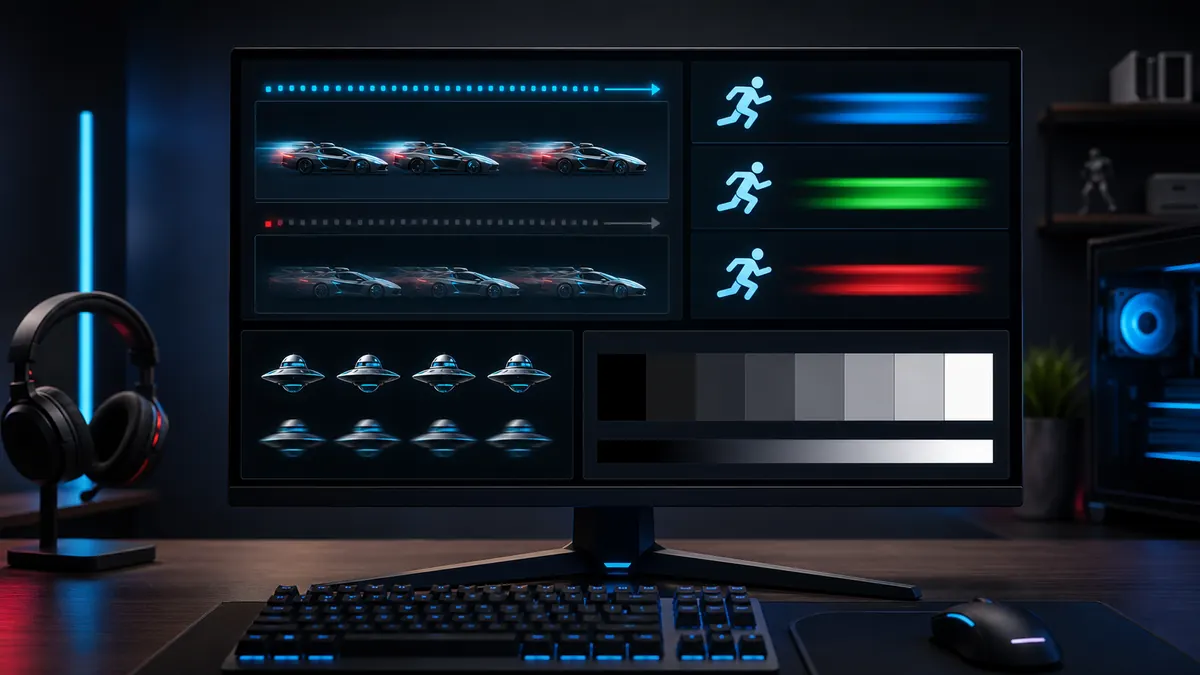
Confirm refresh rate first
Many high-refresh monitors still run at 60 Hz until the operating system or GPU control panel is changed. Confirm the active mode before judging smoothness, response time, or input feel.
- Check OS display settings.
- Use the monitor OSD to confirm mode.
- Use the refresh test for visual smoothness.
Refresh rate is the foundation; tune everything else after it is correct.
Tune visibility without crushing detail
Brightness, contrast, and gamma should reveal dark areas without making the entire image flat. Competitive players often raise visibility, but extreme settings can hide subtle contrast cues or make the screen uncomfortable.
- Use brightness steps.
- Avoid clipped highlights.
- Set game sliders after monitor settings.
Make dark detail visible, but keep the image natural enough to read quickly.
Choose overdrive carefully
The fastest response mode is not always the best. Overdrive can reduce blur, but excessive overdrive creates inverse ghosting, bright halos, or colored trails behind moving objects.
- Compare response modes.
- Watch for halos.
- Use normal gameplay content after the test.
Use the fastest clean mode, not the most aggressive menu label.
Check adaptive sync and frame pacing
Adaptive sync can make variable frame rates feel smoother when the monitor, GPU, cable, and game support it. If you see flicker, stutter, or odd behavior in one game, test with adaptive sync off and on before changing every other setting.
- Enable the monitor adaptive sync mode if required.
- Confirm GPU support.
- Test the games you play most, not only one benchmark.
Adaptive sync is helpful when stable, but game-specific testing matters.
Treat HDR and local dimming separately
HDR modes can change brightness, tone mapping, color, latency, and local dimming behavior. Do not judge SDR desktop settings while HDR is active unless you actually use HDR for that task.
- Use SDR settings for normal desktop and web work.
- Tune HDR with HDR games or videos only.
- Watch for blooming, raised blacks, or clipped highlights.
HDR is its own profile, not just a brighter version of SDR.
Create profiles for different gaming priorities
A competitive shooter profile may prioritize motion clarity and visibility, while a story game profile may prioritize contrast, color, and comfort. Save monitor presets if your OSD supports them, or write down the settings that work.
- Competitive: clean motion, high refresh, readable shadows.
- Single-player: balanced brightness, contrast, and color.
- Night use: lower brightness and less aggressive blue-heavy modes.
One monitor setting is rarely perfect for every game and every room.
Decision table
Gaming setting starting points
Use these as practical starting points, then adjust for your room, panel, and game genre.
| Setting | Good starting point | Warning sign |
|---|---|---|
| Refresh rate | Highest stable mode supported by monitor, cable, GPU, and OS. | Game feels like 60 Hz or OSD reports the wrong mode. |
| Brightness | Comfortable for the room, often lower at night. | Eye strain, washed blacks, or exaggerated bleed. |
| Contrast and gamma | Visible shadow detail without flat midtones. | Crushed dark areas or clipped bright UI. |
| Overdrive | Balanced or fast mode without obvious halos. | Bright trails, inverse ghosting, or overshoot. |
| Adaptive sync | On when supported and stable. | Flicker, stutter, or game-specific instability. |
Recommended tools
Run the tests mentioned in this guide
Refresh Rate Test
A refresh-rate visual test helps you confirm that motion looks smoother after switching to a higher display mode.
Response Time Test
Moving blocks and high-contrast edges make slow transitions, dark smearing, and overshoot easier to see.
Ghosting Test
Ghosting appears as visible trails behind moving objects. This page gives you a quick motion target for tuning the display.
Contrast Test
Use stepped tone patterns to see whether your display keeps dark and bright details separate.
FAQ
Common questions
Should gaming monitors use maximum overdrive?
Not always. Use the fastest mode that avoids obvious overshoot or inverse ghosting.
Should I max out brightness for games?
Only if your room requires it. Excessive brightness can wash out blacks and cause fatigue.
What should I set before changing game sliders?
Set monitor brightness, contrast, refresh rate, and overdrive first, then tune in-game settings.
Why is my 144 Hz or 240 Hz monitor stuck at 60 Hz?
The OS display setting, GPU control panel, cable, monitor input mode, or adapter may be limiting the active refresh rate.
Should adaptive sync always be on?
Use it when it is stable for your monitor and games. If you see flicker or stutter in a specific title, compare with adaptive sync off.
Are gaming presets good?
They can be useful starting points, but some presets oversharpen, crush blacks, or boost colors too much. Test and adjust instead of trusting the label.
Run the matching fullscreen tests.
Use the guide above to decide what to look for, then confirm it with a clean test pattern.