How to Check a Monitor for Dead Pixels
A reliable dead pixel check uses fullscreen solid colors, steady lighting, and a repeatable inspection path. The goal is to separate real panel defects from dust, reflections, scaling artifacts, and temporary cable issues.
Quick answer
- Clean the screen, open a fullscreen test pattern, and inspect white, black, red, green, and blue screens.
- A dead pixel usually stays dark or inactive; a stuck pixel often remains red, green, blue, or bright.
- Retest the same spot after changing patterns, restarting the device, and checking a different cable or input when possible.
- Document repeatable defects during the return window because pixel policies vary by retailer and manufacturer.
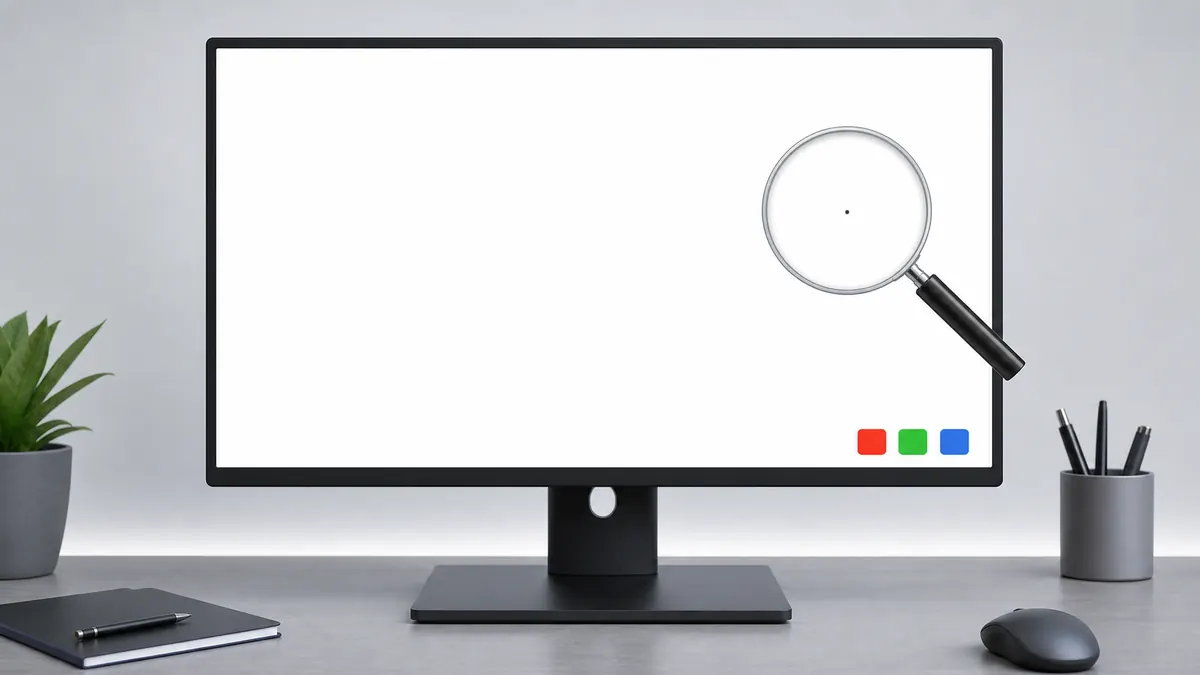
Prepare the screen before judging pixels
A surprising number of suspected pixel defects are dust, dried cleaning marks, or reflections. Turn off strong desk lights, clean the panel gently, set browser zoom to 100 percent, and give the display a few minutes to reach normal brightness.
- Use a microfiber cloth and avoid pressing on the panel.
- Set the monitor to native resolution and normal scaling.
- Use fullscreen mode so browser chrome does not cover the edges.
If the dot moves when you wipe or change viewing angle, it is probably not a dead pixel.
Run the solid color sweep in the right order
Start with white and black because they make the biggest contrast problems obvious. Then cycle red, green, and blue to isolate subpixel behavior. Finish with gray if you also want to check mild tint, dirty screen effect, or uneven brightness.
- White exposes dark inactive pixels.
- Black exposes bright pixels and edge glow.
- Red, green, and blue isolate the RGB subpixels.
A full sweep is more reliable than staring at one white screen.
Inspect with a repeatable scanning path
Do not randomly stare at the screen. Divide the panel into rows or columns, then scan slowly from left to right and top to bottom. Step back to normal viewing distance afterward, because a defect that is visible only from a few centimeters may not matter in daily use.
- Check corners and bezel-adjacent areas carefully.
- Use normal viewing distance after the close inspection.
- Repeat the same path on at least white, black, and RGB colors.
A structured scan catches more defects and prevents double-counting the same dot.
Separate dead pixels from stuck pixels
A dead pixel usually stays dark or inactive on bright screens. A stuck pixel often remains a fixed color, such as red, green, or blue, while nearby pixels change normally. A bright pixel on black is different again and may follow a separate pixel policy.
- Dead pixel: dark or inactive on bright screens.
- Stuck pixel: fixed red, green, blue, or bright color.
- Bright pixel: visible on black or very dark backgrounds.
The warranty category can depend on whether the defect is dark, bright, or subpixel-specific.
Retest before documenting a claim
If a spot is repeatable, restart the device and test again. For an external monitor, try another cable, another input, or another computer if you can. This avoids blaming the panel for a GPU, browser, cable, scaling, or compression artifact.
- Repeat the exact same pattern after restart.
- Check whether screenshots show the dot; true panel defects usually do not appear in screenshots.
- Photograph the physical display if you need seller support.
A true panel defect stays in the same physical location even when the source changes.
Decide what matters during the return window
Pixel policies are not identical across brands, retailers, regions, and product tiers. Some tolerate a small number of dark pixels, while others handle bright pixels more strictly. Test early, keep photos, and compare the defect with the seller policy before the return period closes.
- Record the monitor model, serial number, and purchase date.
- Keep photos that show the pattern and physical location.
- Judge daily-use visibility as well as close-range visibility.
The practical decision is not only whether a pixel exists, but whether it is repeatable, visible, and covered by policy.
Decision table
Which screen color finds which pixel problem?
Each solid color stresses the panel differently. Work through the full set before deciding what kind of defect you found.
| Pattern | What it reveals | What to do next |
|---|---|---|
| White screen | Dark dead pixels, dust, dirt, dim subpixels | Clean the panel and retest the same dot on gray and RGB screens. |
| Black screen | Bright pixels, backlight leakage, edge glow | If the issue is a dot, compare with RGB; if it is a patch, run the bleed test. |
| Red, green, blue | Channel-specific stuck subpixels | A dot visible in only one channel usually points to a subpixel issue. |
| Gray screen | Uneven brightness, dirty screen effect, mild tint | Use the screen uniformity test before judging a panel as defective. |
Recommended tools
Run the tests mentioned in this guide
Dead Pixel Test
Use full-screen color fills to find pixels that stay black, white, or visibly different from the surrounding panel.
Stuck Pixel Test
A stuck pixel often stays red, green, or blue. Cycle primary colors to spot the subpixel that is not changing correctly.
White Screen
A fullscreen white screen makes dark pixels, dust, smudges, and brightness falloff easier to see.
Black Screen
A fullscreen black screen helps reveal bright stuck pixels, light leakage, OLED behavior, and dark-room panel glow.
FAQ
Common questions
How many dead pixels are acceptable?
Policies vary by brand and retailer. Check the seller warranty terms for your exact monitor model.
Should I test immediately after purchase?
Yes. Test while the return or exchange period is still open.
Can dust look like a dead pixel?
Yes. Clean the screen gently and retest before deciding a dot is a panel defect.
Can a screenshot prove a dead pixel?
Usually no. A real panel pixel defect is on the display hardware, so it normally will not appear in a screenshot. Use a photo of the physical screen for records.
Should I use maximum brightness for the test?
Use normal or slightly high brightness, but avoid uncomfortable maximum brightness unless the seller asks for it. Extreme brightness can make glare and camera exposure harder to judge.
Can a dead pixel be fixed by software?
A true dead pixel usually cannot be fixed by a browser test. Some stuck pixels may change over time, but do not rely on repair animations for return-window decisions.
Run the matching fullscreen tests.
Use the guide above to decide what to look for, then confirm it with a clean test pattern.