Monitor Test Patterns
Test patterns combine grids, lines, gradients, and color blocks so you can check geometry and image processing quickly.
Live screen test
Start with the real patterns.
Look for bowed lines, cropped edges, and uneven spacing. This is not the text-clarity reading page.
What it checks
Use this test when you need a clear visual answer.
Monitor Test Patterns is built for quick inspection, not lab measurement. It gives you controlled browser patterns so you can decide whether the screen needs setup, retesting, or warranty attention.
Geometry alignment
Scaling blur
Sharpness and processing
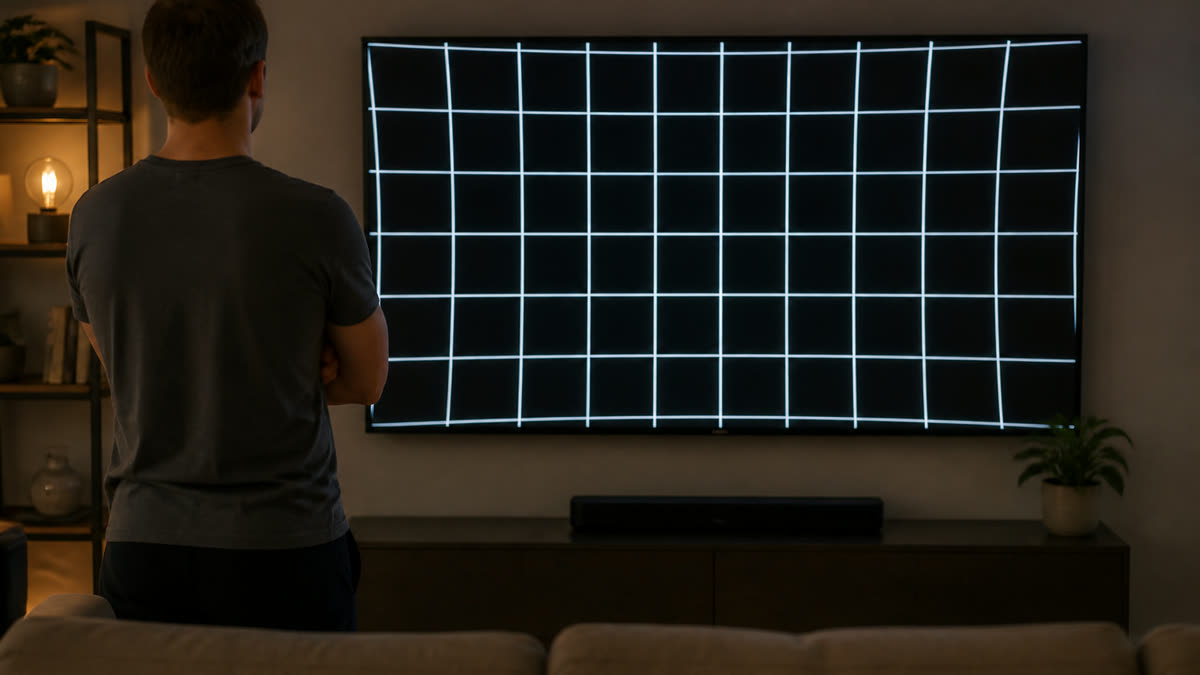
If grid lines bow or vanish at the bezel, geometry or overscan is off.
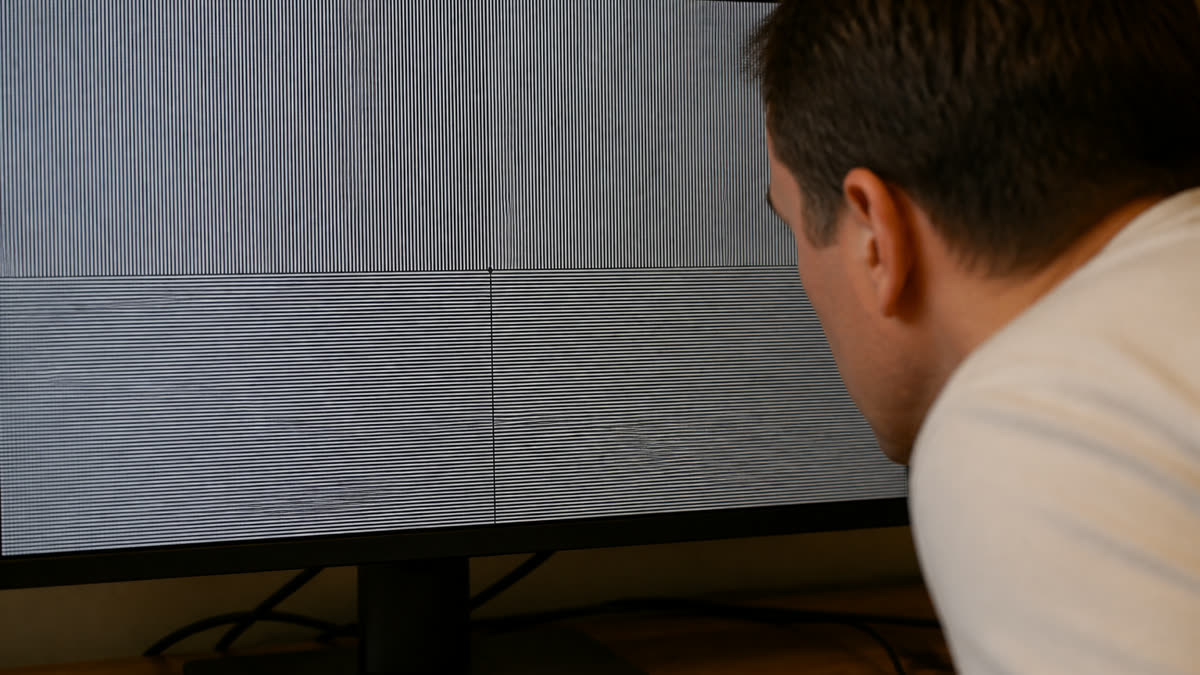
If 1px lines smear into gray, the display is scaled or not at native resolution.
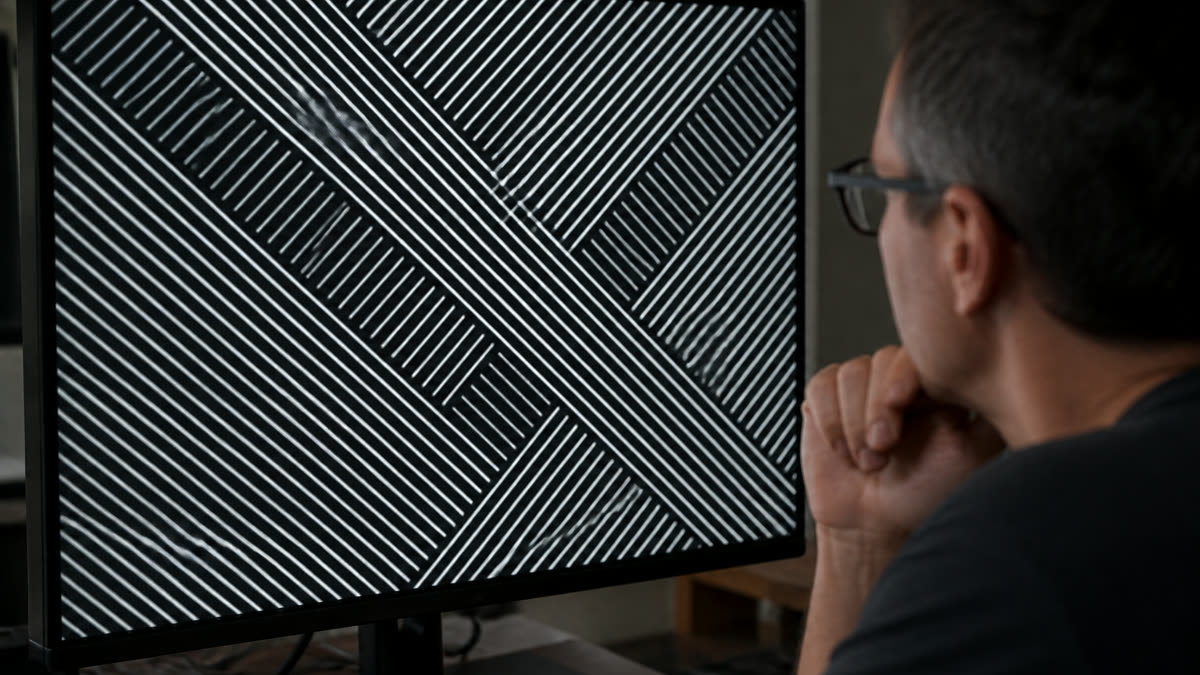
White rings around diagonals mean sharpness or picture processing is too high.
Result guide
How to read the test patterns result
Start with the geometry grid pattern, then switch to adjacent patterns before making a decision. A real display problem usually stays in the same area when the pattern changes. A reflection, viewing angle shift, browser zoom issue, or temporary image setting often changes when you move your head, adjust brightness, or repeat the test after a restart.
Geometry alignment
Use this page to isolate geometry alignment under controlled screen patterns. Scan the center, edges, and corners, then confirm the same area with a second pattern before you treat it as a panel issue.
Scaling blur
Use this page to isolate scaling blur under controlled screen patterns. Scan the center, edges, and corners, then confirm the same area with a second pattern before you treat it as a panel issue.
Sharpness and processing
Use this page to isolate sharpness and processing under controlled screen patterns. Scan the center, edges, and corners, then confirm the same area with a second pattern before you treat it as a panel issue.
Workflow
How to use the monitor test patterns
Open the pattern fullscreen and view it at the display native resolution.
Check that grid lines are straight, evenly spaced, and not cropped.
Use the fine line areas to tune sharpness without adding halos.
Use cases
Where this screen test is most useful
Projector setup
Align geometry and focus before watching content.
TV overscan check
Confirm the desktop or console image is not cropped at the edges.
Monitor sharpness tuning
Use fine lines and text blocks to avoid overprocessing.
Reading the result
Practical tips before you decide
Use native resolution
Scaling hides real panel sharpness and can make grids misleading.
Check all edges
Overscan or cropping often appears at the border first.
Keep sharpness neutral
The best setting usually looks clean, not aggressively etched.
Device setup
Use the same screen test across real viewing setups
The monitor test patterns works best when the test matches the way you actually use the display. Keep the room lighting, brightness, scaling, and viewing distance close to normal, then repeat the pattern only after a setting change. This keeps the result practical instead of turning the page into a lab claim.
Desktop and laptop monitors
Use native resolution, 100 percent browser zoom, and the monitor picture mode you normally use. If you change brightness, contrast, overdrive, or color temperature, repeat the test patterns pass before comparing results.
TVs, projectors, and large panels
Step back to your real viewing distance after a close inspection. Large screens can exaggerate small edge, glow, focus, or processing issues, so confirm anything suspicious with normal video, games, or desktop content.
Phones and tablets
Rotate the device if the browser supports it, clean the glass, and reduce reflections before judging the result. Some mobile browsers limit fullscreen behavior, but the same pattern sequence still helps with quick display checks.
Related tests
Continue with adjacent checks
Text Clarity Test
Text samples and fine lines help reveal blur, wrong scaling, subpixel issues, and overly sharp processing.
Contrast Test
Use stepped tone patterns to see whether your display keeps dark and bright details separate.
Color Banding Test
Smooth gradients reveal banding, posterization, and compression-like steps that flat color screens can hide.
Refresh Rate Test
A refresh-rate visual test helps you confirm that motion looks smoother after switching to a higher display mode.
FAQ
Monitor Test Patterns questions
These answers match the visible test on this page and avoid warranty or measurement claims that depend on your specific display.
What are monitor test patterns for?
They help you check geometry, alignment, sharpness, scaling, and basic display processing.
Why do lines look uneven?
Uneven lines can come from scaling, non-native resolution, browser zoom, or panel processing.
Can I use this on a projector?
Yes. Fullscreen grid patterns are useful for projector focus and geometry checks.
Should overscan be enabled?
For computers and consoles, overscan should usually be disabled so the full image is visible.
Is this a downloadable calibration pack or a colorimeter?
No. These are browser grids, lines, and crosshatch patterns for geometry, scaling, and processing. There is no ZIP to download and no ICC or nits reading. Color patches stay on the color-accuracy page. Reading samples stay on the text-clarity page.
Can I use the monitor test patterns on more than one device?
Yes. Open the same page on each monitor, laptop, phone, tablet, TV, or projector, then compare the test patterns result under similar brightness and room lighting. Device browsers can handle fullscreen differently, but the visual patterns are still useful for a practical check.
Does this online test patterns test replace professional calibration?
No. This page is a browser-based visual test for finding obvious display problems and setup issues. For color-critical work, brightness targets, or measured calibration, use a hardware colorimeter or professional display workflow after the visual pass.
How to Check a Monitor for Dead Pixels
A reliable dead pixel check uses fullscreen solid colors, steady lighting, and a repeatable inspection path. The goal is to separate real panel defects from dust, reflections, scaling artifacts, and temporary cable issues.
How to Test a New Monitor
A new monitor should be tested before you mount it, remove packaging, or let the return window pass. Start with panel defects, then verify uniformity, tone, text clarity, refresh rate, and real content.
Monitor Calibration Guide
Browser tests can help you set a monitor to a sensible baseline and spot obvious problems. They do not replace a colorimeter, but they make brightness, contrast, gamma, sharpness, and banding easier to judge before hardware calibration.
Ready to inspect the full screen?
Open the fullscreen pattern and move through the test slowly.