Red Screen
A pure red screen isolates the red channel so stuck subpixels, tint shifts, and color uniformity issues stand out.
Live screen test
Start with the real patterns.
Look for dots that stay green, blue, or black on a full red field. This is not a night light or a movie test screening.
What it checks
Use this test when you need a clear visual answer.
Red Screen is built for quick inspection, not lab measurement. It gives you controlled browser patterns so you can decide whether the screen needs setup, retesting, or warranty attention.
Red subpixel defects
Tint shifts
Color uniformity
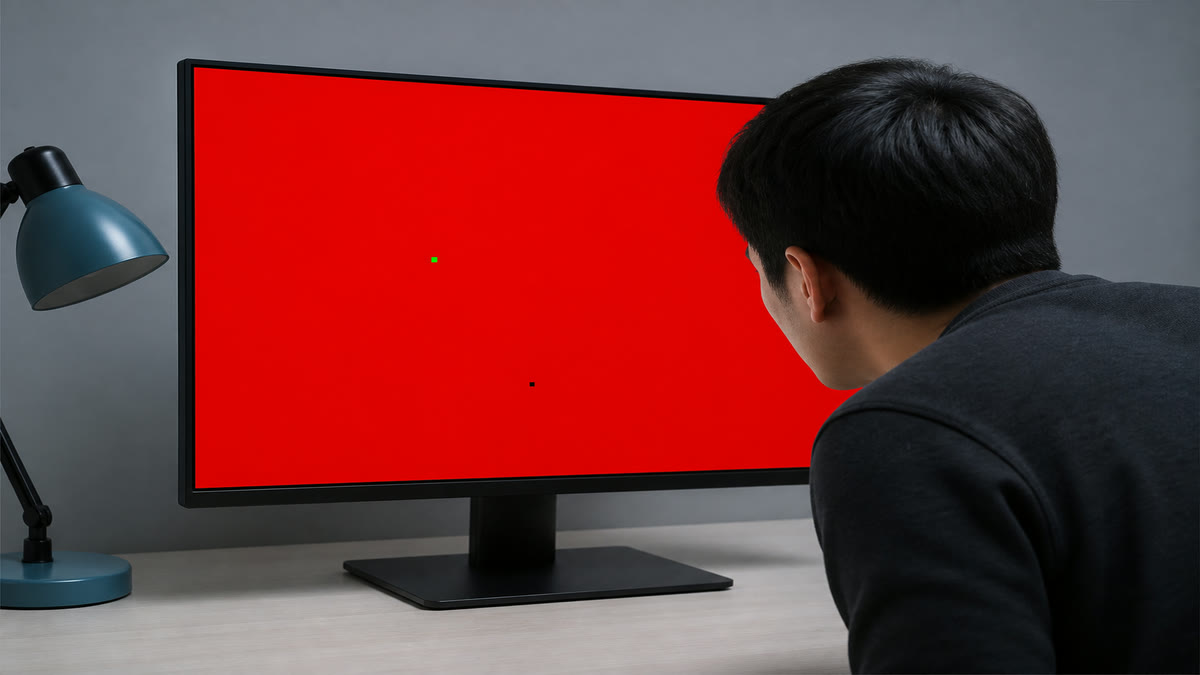
A green or black spec that stays put on red is a subpixel defect, not a night-light effect.
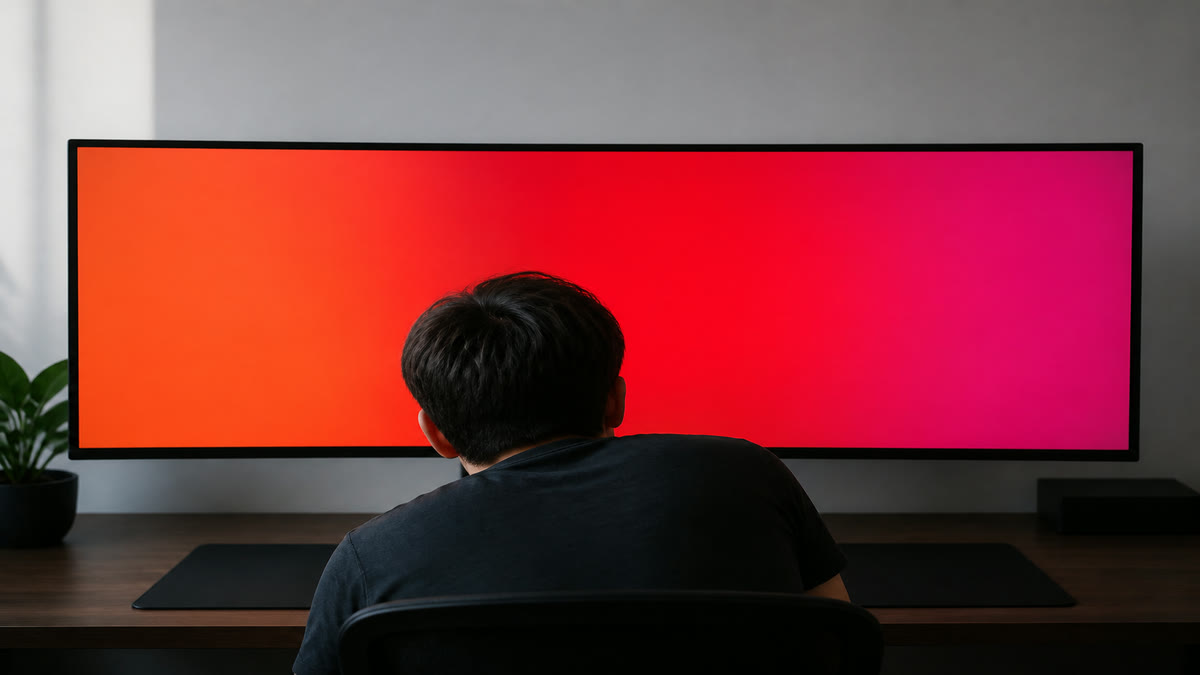
If one side looks orange and the other looks pink, that is a tint shift on the red channel.
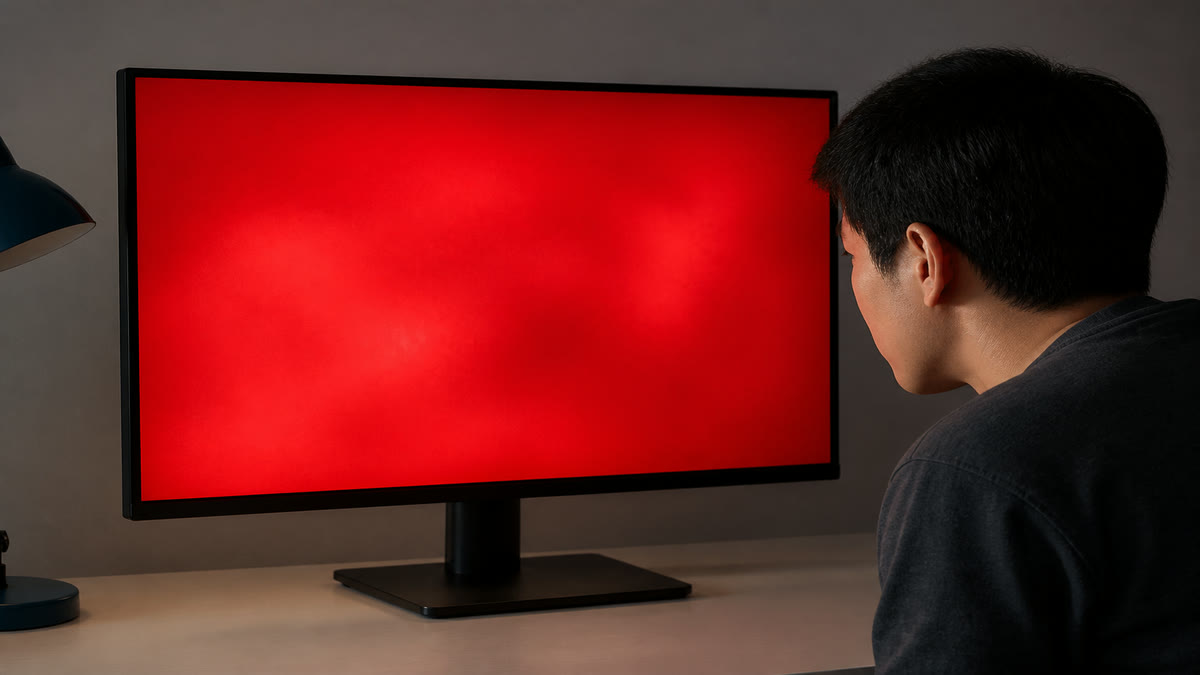
Cloudy bright and dark patches on red are color uniformity issues, not a single stuck pixel.
Result guide
How to read the red screen result
Start with the red pattern, then switch to adjacent patterns before making a decision. A real display problem usually stays in the same area when the pattern changes. A reflection, viewing angle shift, browser zoom issue, or temporary image setting often changes when you move your head, adjust brightness, or repeat the test after a restart.
Red subpixel defects
Use this page to isolate red subpixel defects under controlled screen patterns. Scan the center, edges, and corners, then confirm the same area with a second pattern before you treat it as a panel issue.
Tint shifts
Use this page to isolate tint shifts under controlled screen patterns. Scan the center, edges, and corners, then confirm the same area with a second pattern before you treat it as a panel issue.
Color uniformity
Use this page to isolate color uniformity under controlled screen patterns. Scan the center, edges, and corners, then confirm the same area with a second pattern before you treat it as a panel issue.
Workflow
How to use the red screen
Open the red screen fullscreen after a white and black pass.
Scan from left to right for dots that do not match the red field.
Repeat with green and blue to confirm whether the issue is channel-specific.
Use cases
Where this screen test is most useful
Subpixel inspection
Red helps identify defects that hide on white or gray.
OLED color check
Inspect uniformity in saturated color fills.
Display comparison
Compare tint and saturation between screens using the same pattern.
Reading the result
Practical tips before you decide
Use primary colors together
A single color is useful, but red, green, and blue together tell a better story.
Watch for fixed dots
A dot that stays different from the field may indicate a stuck or dead subpixel.
Avoid judging color accuracy alone
This is a visual uniformity check, not a calibrated color measurement.
Device setup
Use the same screen test across real viewing setups
The red screen works best when the test matches the way you actually use the display. Keep the room lighting, brightness, scaling, and viewing distance close to normal, then repeat the pattern only after a setting change. This keeps the result practical instead of turning the page into a lab claim.
Desktop and laptop monitors
Use native resolution, 100 percent browser zoom, and the monitor picture mode you normally use. If you change brightness, contrast, overdrive, or color temperature, repeat the red screen pass before comparing results.
TVs, projectors, and large panels
Step back to your real viewing distance after a close inspection. Large screens can exaggerate small edge, glow, focus, or processing issues, so confirm anything suspicious with normal video, games, or desktop content.
Phones and tablets
Rotate the device if the browser supports it, clean the glass, and reduce reflections before judging the result. Some mobile browsers limit fullscreen behavior, but the same pattern sequence still helps with quick display checks.
Related tests
Continue with adjacent checks
Green Screen
A pure green screen stresses the green subpixel channel and makes channel-specific defects easier to spot.
Blue Screen
A pure blue screen isolates the blue channel and helps reveal defects that may hide on white or red patterns.
Stuck Pixel Test
A stuck pixel often stays red, green, or blue. Cycle primary colors to spot the subpixel that is not changing correctly.
Dead Pixel Test
Use full-screen color fills to find pixels that stay black, white, or visibly different from the surrounding panel.
FAQ
Red Screen questions
These answers match the visible test on this page and avoid warranty or measurement claims that depend on your specific display.
Why use a red screen?
It isolates the red subpixel channel and helps reveal stuck pixels or color uniformity problems.
Can red screen test color accuracy?
It can reveal obvious issues, but accurate color measurement requires calibration hardware.
Should I test green and blue too?
Yes. RGB screens should be checked with red, green, and blue patterns.
Is fullscreen important?
Yes. Fullscreen removes browser UI and makes the whole panel easier to inspect.
Is this a night light, a movie screening, or a Redmi check?
No. This page is one red field so you can see non-red dots, tint, and blotchy red. Green and blue stay on their own pages. It is not a photography lamp, not a wallpaper download, and not a phone-model or hiring screen.
Can I use the red screen on more than one device?
Yes. Open the same page on each monitor, laptop, phone, tablet, TV, or projector, then compare the red screen result under similar brightness and room lighting. Device browsers can handle fullscreen differently, but the visual patterns are still useful for a practical check.
Does this online red screen test replace professional calibration?
No. This page is a browser-based visual test for finding obvious display problems and setup issues. For color-critical work, brightness targets, or measured calibration, use a hardware colorimeter or professional display workflow after the visual pass.
How to Check a Monitor for Dead Pixels
A reliable dead pixel check uses fullscreen solid colors, steady lighting, and a repeatable inspection path. The goal is to separate real panel defects from dust, reflections, scaling artifacts, and temporary cable issues.
How to Test a New Monitor
A new monitor should be tested before you mount it, remove packaging, or let the return window pass. Start with panel defects, then verify uniformity, tone, text clarity, refresh rate, and real content.
Monitor Calibration Guide
Browser tests can help you set a monitor to a sensible baseline and spot obvious problems. They do not replace a colorimeter, but they make brightness, contrast, gamma, sharpness, and banding easier to judge before hardware calibration.
Ready to inspect the full screen?
Open the fullscreen pattern and move through the test slowly.