Greyscale Test Online
Walk 17 grey steps and solid gray fields to see crushed shadows, clipped highlights, tint, and dirty screen effect.
Live screen test
Start with the real patterns.
Every bar should stay separate. This is not a 6-bit color-depth stair.
What it checks
Use this test when you need a clear visual answer.
Greyscale Test is built for quick inspection, not lab measurement. It gives you controlled browser patterns so you can decide whether the screen needs setup, retesting, or warranty attention.
Missing grey steps
Gray tint and mura
Shadow and highlight clipping
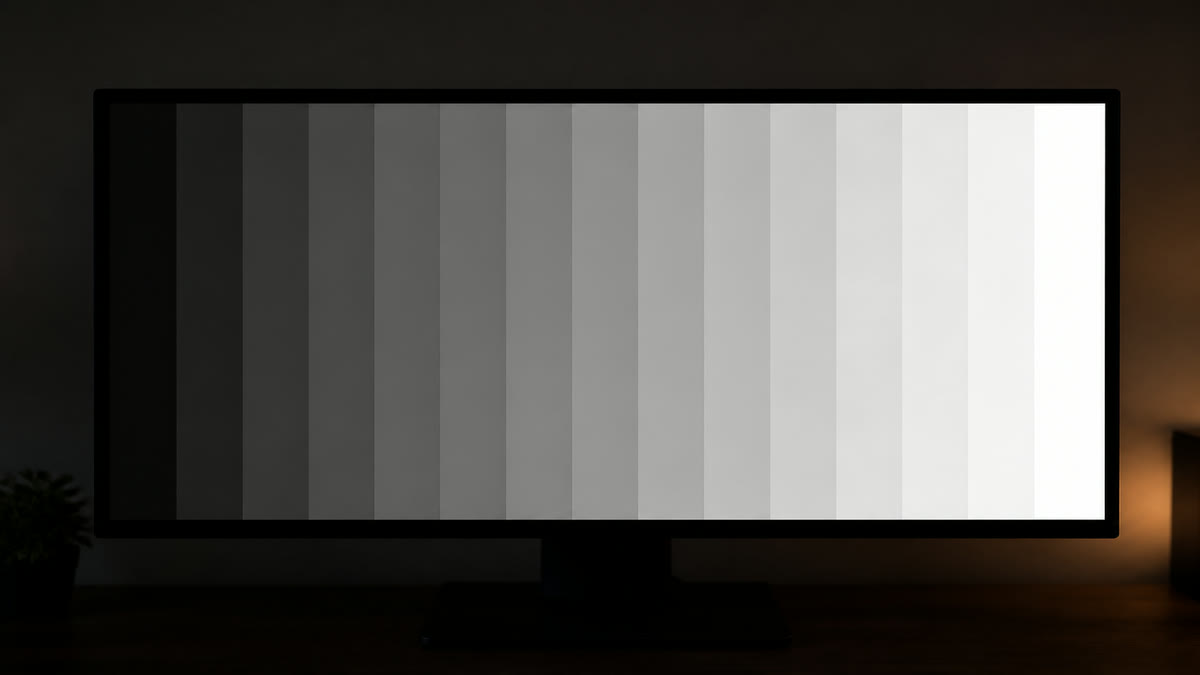
If two bars merge, that end of the tone scale is crushed or clipped. This is not a 6-bit color-depth stair.
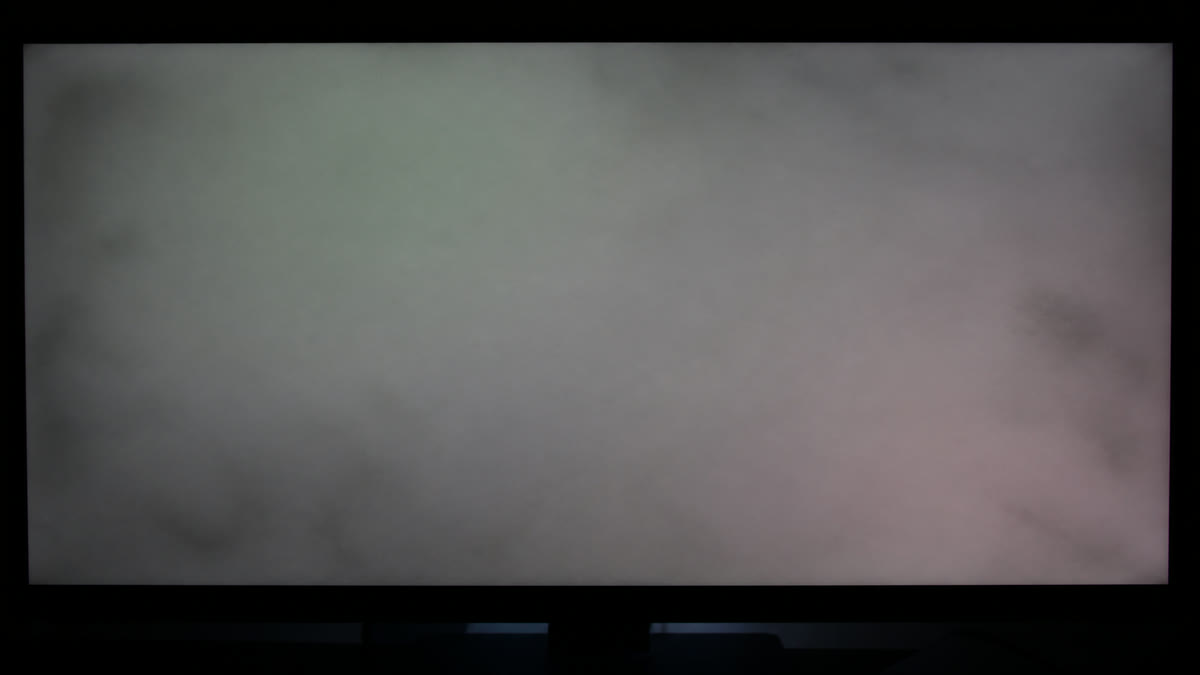
Color on a grey field is white-balance or mura, not a dead pixel. Burn-in stays on the OLED page.
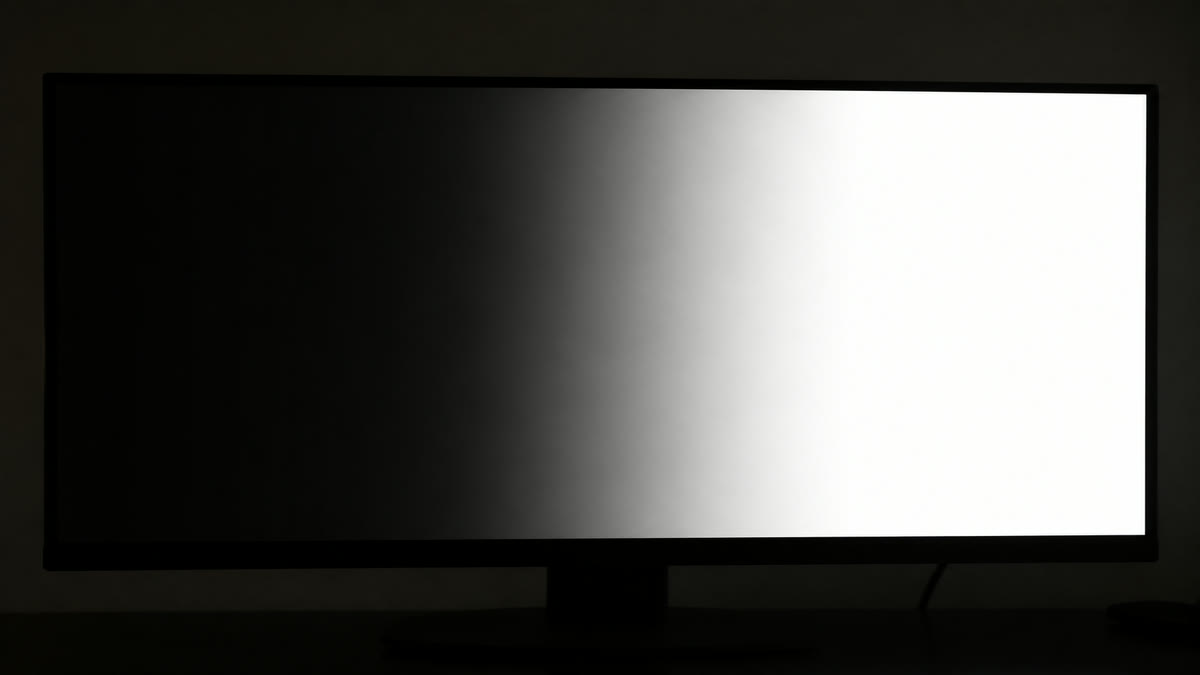
Vanished dark steps are crush. Melted light steps are clip. This is not a nits meter or a printer test page.
Result guide
How to read the greyscale result
Start with the 17-step grey pattern, then switch to adjacent patterns before making a decision. A real display problem usually stays in the same area when the pattern changes. A reflection, viewing angle shift, browser zoom issue, or temporary image setting often changes when you move your head, adjust brightness, or repeat the test after a restart.
Missing grey steps
Use this page to isolate missing grey steps under controlled screen patterns. Scan the center, edges, and corners, then confirm the same area with a second pattern before you treat it as a panel issue.
Gray tint and mura
Use this page to isolate gray tint and mura under controlled screen patterns. Scan the center, edges, and corners, then confirm the same area with a second pattern before you treat it as a panel issue.
Shadow and highlight clipping
Use this page to isolate shadow and highlight clipping under controlled screen patterns. Scan the center, edges, and corners, then confirm the same area with a second pattern before you treat it as a panel issue.
Workflow
How to use the greyscale test
Start on the 17-step bars at 100 percent zoom and your normal brightness.
Every bar should stay separate. If two merge, that end of the tone scale is crushed or clipped.
Switch to 50% and 25% gray to judge uniformity, then near-black and near-white for the ends.
Use cases
Where this screen test is most useful
Brightness setup
Use the steps while you raise or lower backlight so blacks do not collapse.
Tint check
A grey field that looks green or pink is a white-balance problem, not a dead pixel.
Uniformity
Clouding and dirty screen effect show more on mid grey than on white.
Reading the result
Practical tips before you decide
This page is the grey home
Brightness and contrast still help with setup. This URL is for greyscale and gray-field inspection.
Sit still
Laptop and TN panels shift grey with viewing angle. Judge from your normal seat.
Warm the panel
Cold screens can look more tinted for the first 10–15 minutes.
Device setup
Use the same screen test across real viewing setups
The greyscale test works best when the test matches the way you actually use the display. Keep the room lighting, brightness, scaling, and viewing distance close to normal, then repeat the pattern only after a setting change. This keeps the result practical instead of turning the page into a lab claim.
Desktop and laptop monitors
Use native resolution, 100 percent browser zoom, and the monitor picture mode you normally use. If you change brightness, contrast, overdrive, or color temperature, repeat the greyscale pass before comparing results.
TVs, projectors, and large panels
Step back to your real viewing distance after a close inspection. Large screens can exaggerate small edge, glow, focus, or processing issues, so confirm anything suspicious with normal video, games, or desktop content.
Phones and tablets
Rotate the device if the browser supports it, clean the glass, and reduce reflections before judging the result. Some mobile browsers limit fullscreen behavior, but the same pattern sequence still helps with quick display checks.
Related tests
Continue with adjacent checks
Brightness Test
The brightness test helps you set a comfortable level while keeping near-black and near-white detail visible.
Contrast Test
Use stepped tone patterns to see whether your display keeps dark and bright details separate.
Gamma Test
Gamma affects midtone brightness. This test gives you reference patterns for judging whether gray steps look balanced.
Screen Uniformity Test
Uniformity patterns help you see whether brightness and color remain consistent from center to corners.
FAQ
Greyscale Test questions
These answers match the visible test on this page and avoid warranty or measurement claims that depend on your specific display.
What is a greyscale test for?
It shows whether the panel keeps a clean path from black to white. Missing steps mean crushed or clipped tone. Color on a grey field means the white balance is off.
Is grayscale the same as greyscale?
Yes. This page covers both spellings. The patterns are the same.
How many grey levels should I see?
On the 17-step pattern you should see 17 distinct bars. If the darkest two or the brightest two merge, adjust brightness or contrast and test again.
Should I use brightness test or this page?
Use this page when you searched for greyscale or grayscale. Use brightness test when you are setting comfort level and peak nits by eye. They share gray ramps on purpose.
Should I turn HDR on for a greyscale test on an OLED?
Start in SDR at your normal brightness. HDR can crush or lift the same grey steps, so run the 17-step bars first with HDR off, then again only if you actually use HDR. This page is not an OLED burn-in test and not a printer greyscale page.
Can I use the greyscale test on more than one device?
Yes. Open the same page on each monitor, laptop, phone, tablet, TV, or projector, then compare the greyscale result under similar brightness and room lighting. Device browsers can handle fullscreen differently, but the visual patterns are still useful for a practical check.
Does this online greyscale test replace professional calibration?
No. This page is a browser-based visual test for finding obvious display problems and setup issues. For color-critical work, brightness targets, or measured calibration, use a hardware colorimeter or professional display workflow after the visual pass.
How to Check a Monitor for Dead Pixels
A reliable dead pixel check uses fullscreen solid colors, steady lighting, and a repeatable inspection path. The goal is to separate real panel defects from dust, reflections, scaling artifacts, and temporary cable issues.
How to Test a New Monitor
A new monitor should be tested before you mount it, remove packaging, or let the return window pass. Start with panel defects, then verify uniformity, tone, text clarity, refresh rate, and real content.
Monitor Calibration Guide
Browser tests can help you set a monitor to a sensible baseline and spot obvious problems. They do not replace a colorimeter, but they make brightness, contrast, gamma, sharpness, and banding easier to judge before hardware calibration.
Ready to inspect the full screen?
Open the fullscreen pattern and move through the test slowly.